Connecting a device to a computer post InTune MDM enrolment can be challenging due to the necessity of an Apple Configurator certificate. However, obtaining and configuring this certificate isn’t always straightforward.
Unfortunately this must be completed before enrolment, if there is need to manage a device post-enrolment. The user will need to have iCloud storage to perform a backup and restore after a reset. The actual need for this is subjective. However if you are a IT department creating backups locally has a great advantage for user support. As does being able to install ad-hoc profiles or updating the device. The latter two could always be done with the MDM.
Contrary to some online suggestions, this isn’t a push certificate from Apple. The actual process involves:
- Procuring the Apple Configurator certificate.
- Exporting and configuring it to match InTune’s specific requirements for seamless device connectivity with a computer.
Understanding this precise procedure is essential for successful integration with InTune MDM, ensuring a smooth experience for managing devices.
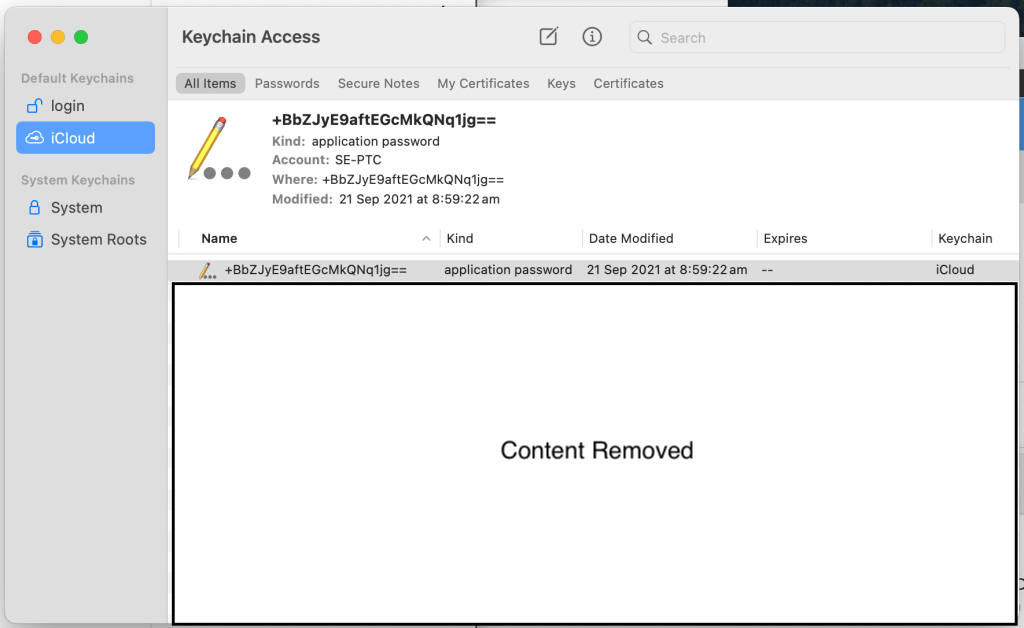
Choose Login, then the certificates tab, and Choose the certificate labelled Apple Configurator.
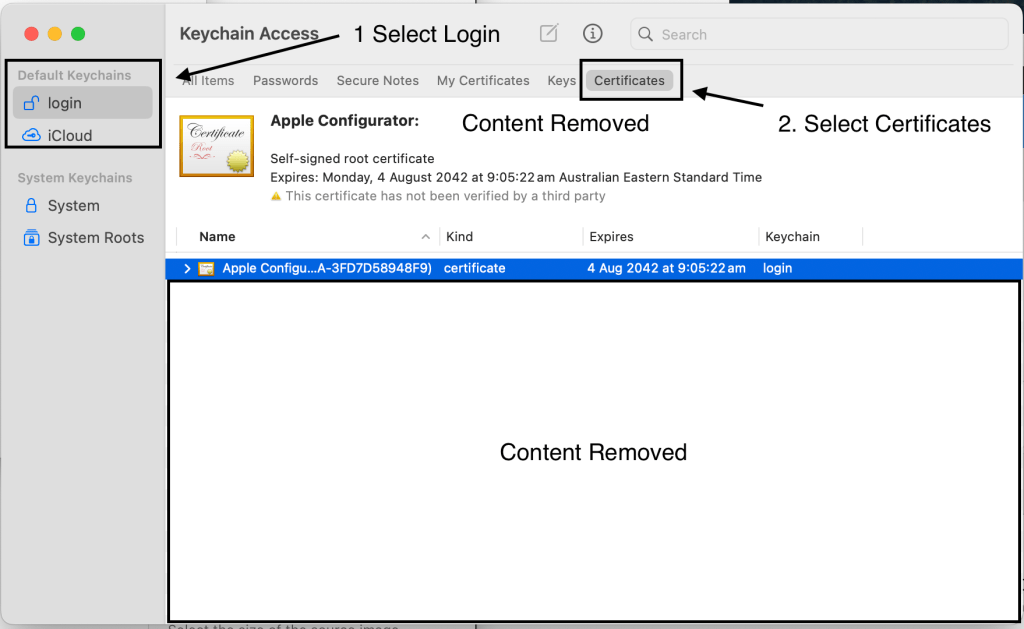
If you do not see a certificate for Apple Configurator. Ensure you have imported or signed into your organisation through Apple Configurator.
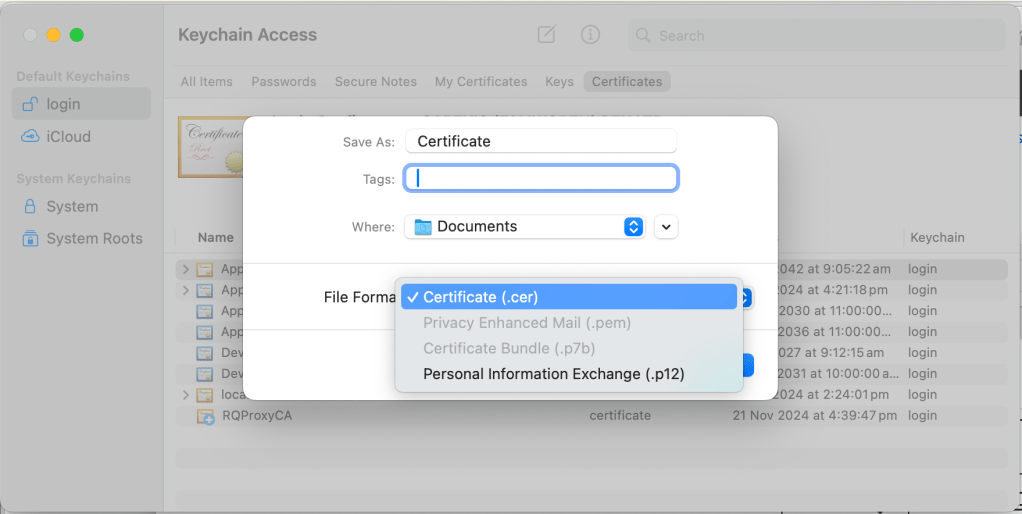
Click File / Export Items

Choose a filename and path and change the file format to Certificate (.cer)
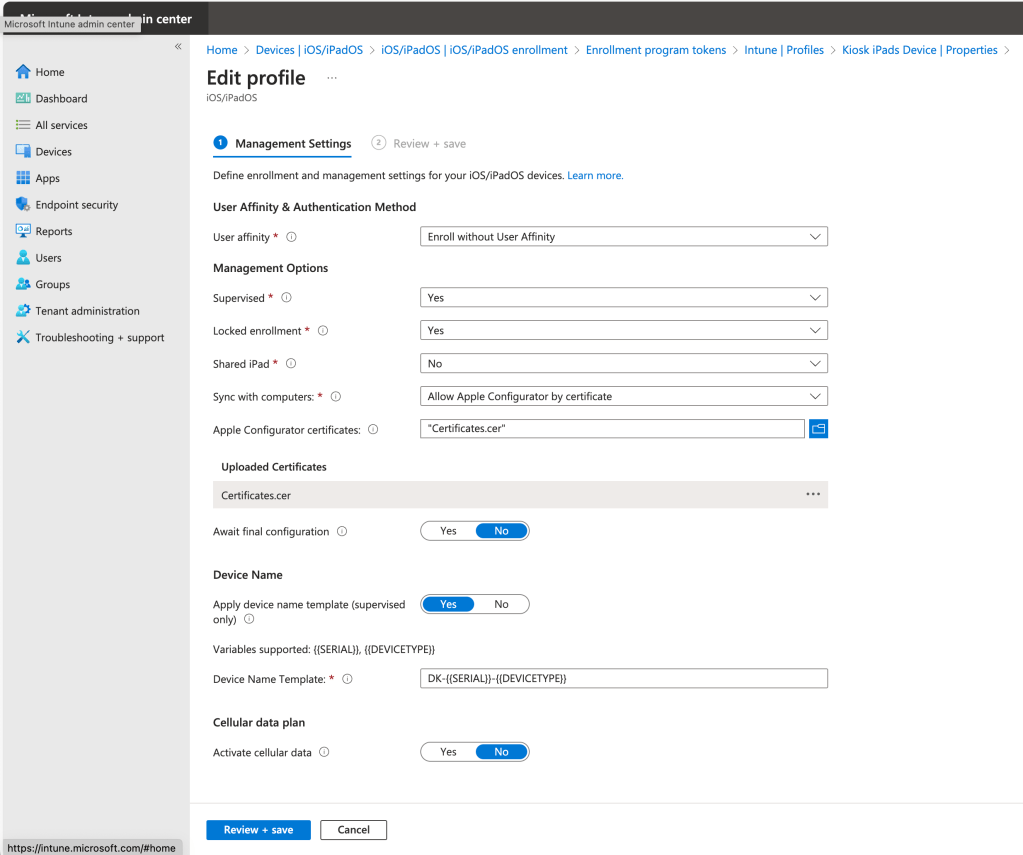
Open Intune and navigate to
Devices | iOS/iPadOS | Enrolment | Enrolment Program Tokens | Profiles | Profile Name
Choose Sync With Computers: Allow Apple Configurator by Certificate
Choose the certificate file that you have exported and save
Any newly enrolled devices from this point onwards, will be allowed to connect to Apple Configurator with your management computer. If you want to use it on another PC, importing the organisation should be enough.
 thescobber